Appearance
Troubleshooting and FAQs
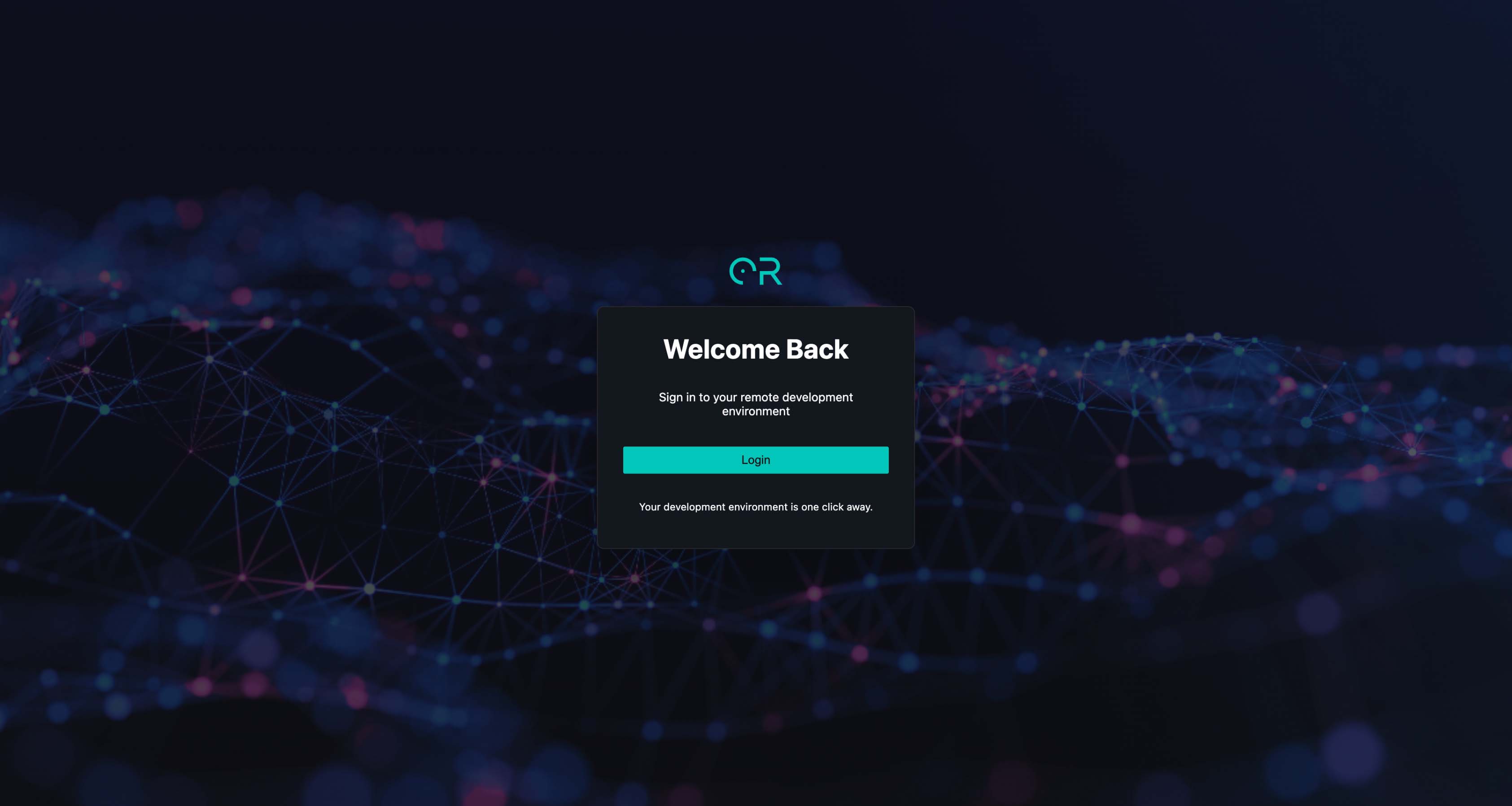
The Optimal Reality platform is still at its formative stages and there are known bugs and issues that may be present when you're using it. Below are the issues that are known and their corresponding fixes.
1. Refreshing the Page
WARNING
Refreshing the page will log you out of the platform, so make sure you save all your work first.
To reload, remove all text in the URL after ".com" and navigate to:
https://web.core.optimalreality.com/
2. Login Expired
If you see a "login expired" banner at any point when using the SDK, refresh the page.
Refreshing the page will take you back to the login screen. Log back in again.
3. Healthy Nexus
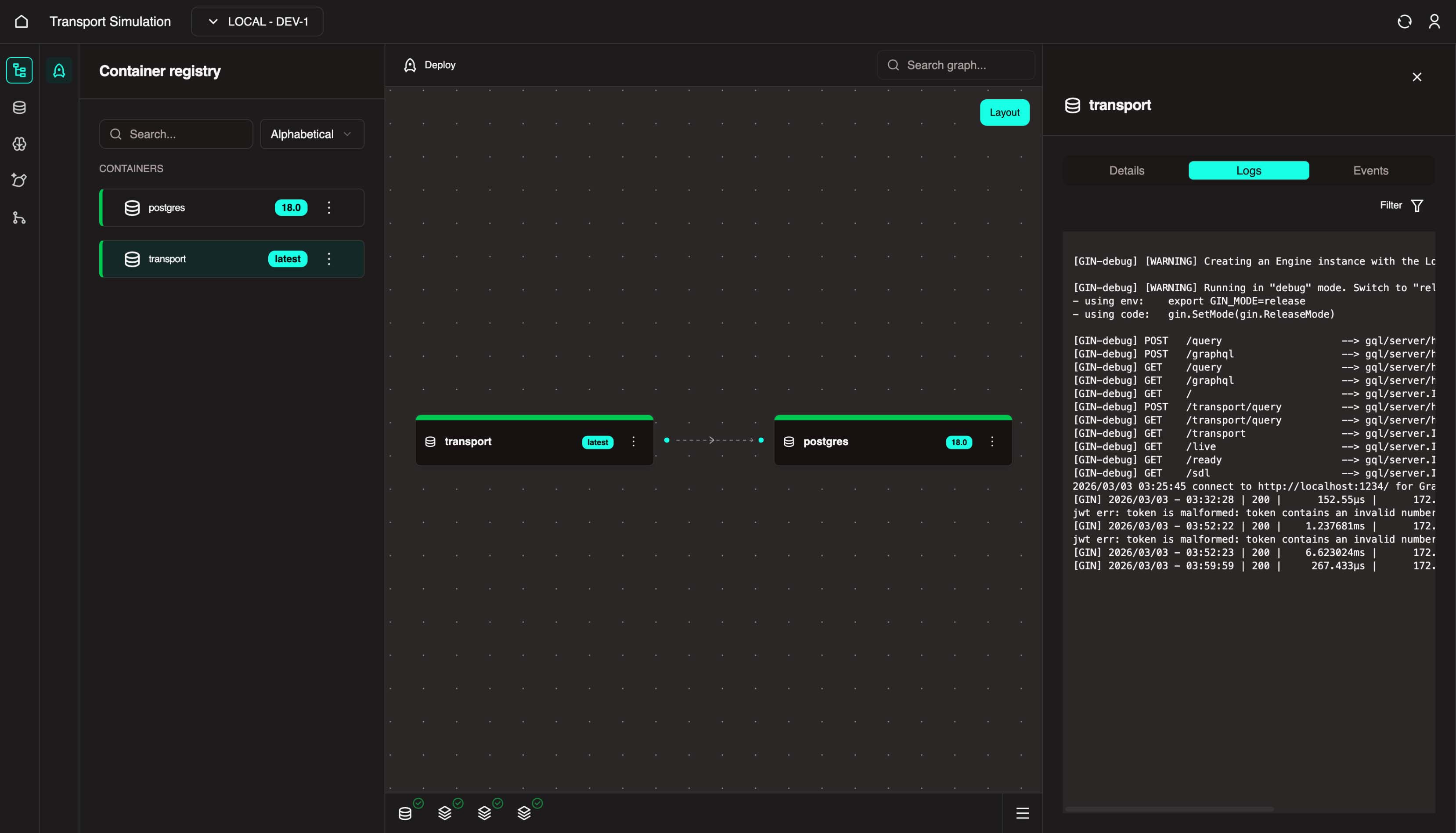
Always make sure that when you deploy in Nexus, the status of all nodes is green.
If a node is not green, it may indicate that a step in the flow was performed incorrectly or that the wrong version was selected.
For more details and to identify potential issues, always check the Nexus logs.
Contact Support
If the issue is not resolved, please contact OR support. Click on any node that is not green and send the logs from the left panel to OR support for further investigation.
4. FDK Limitations
The FDK is our newest addition to the SDK, so some components may not yet support edit or delete capabilities. These features will be added in future updates. For now, if you need to update or remove certain configurations, it may need to be done in code.
Deleting Your FDK Workspace
If you prefer to delete your entire FDK workspace and start from scratch:
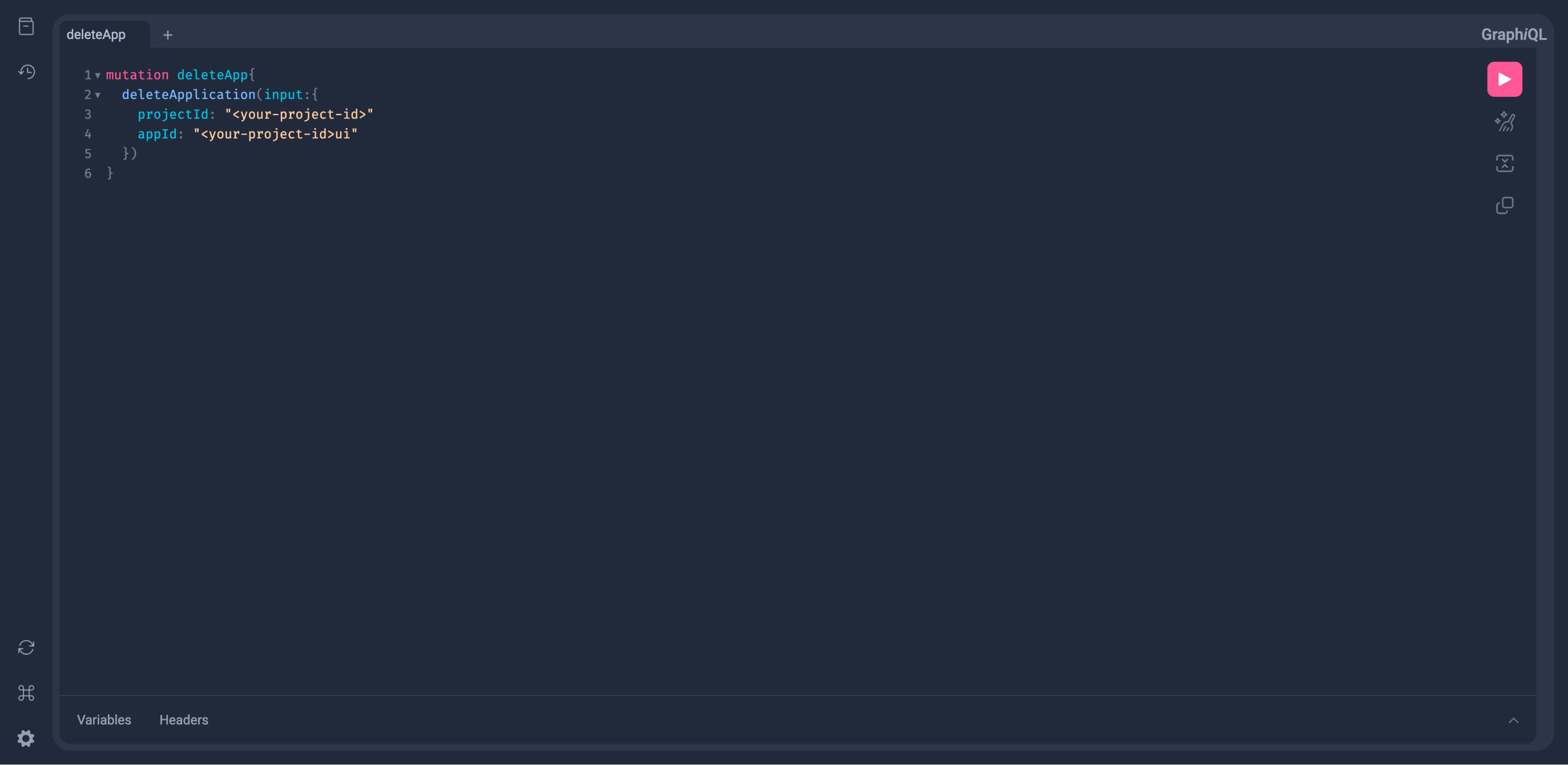
Go to the GraphiQL playground: https://web.core.optimalreality.com/live/8080/
Paste the code below into a new page on the playground. Replace
<your-project-id>with your own project ID.
graphql
mutation deleteApp{
  deleteApplication(input:{
    projectId: "<your-project-id>"
    appId: "<your-project-id>ui"
  })
}
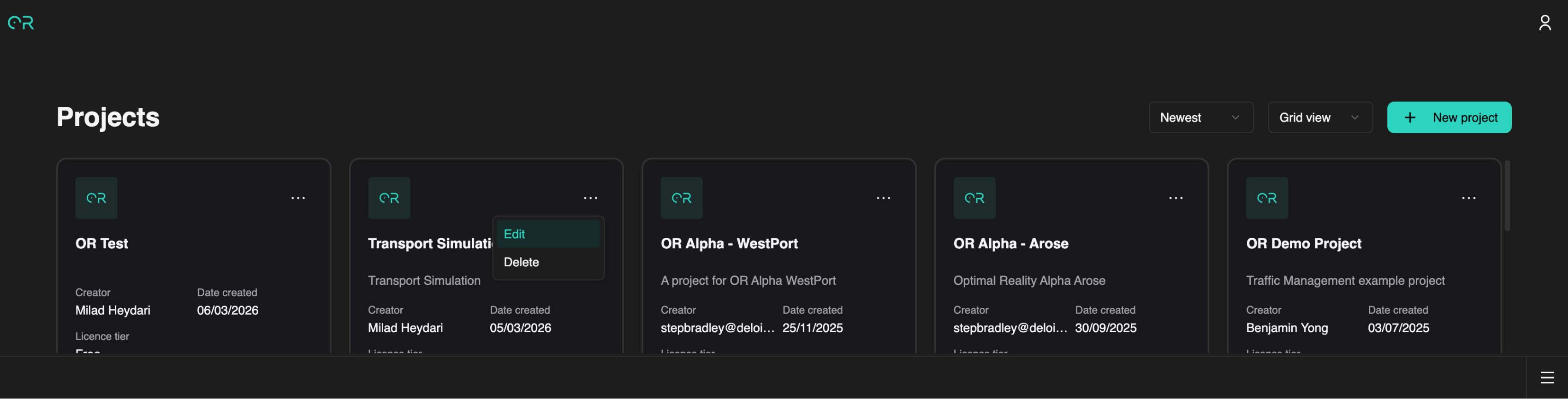
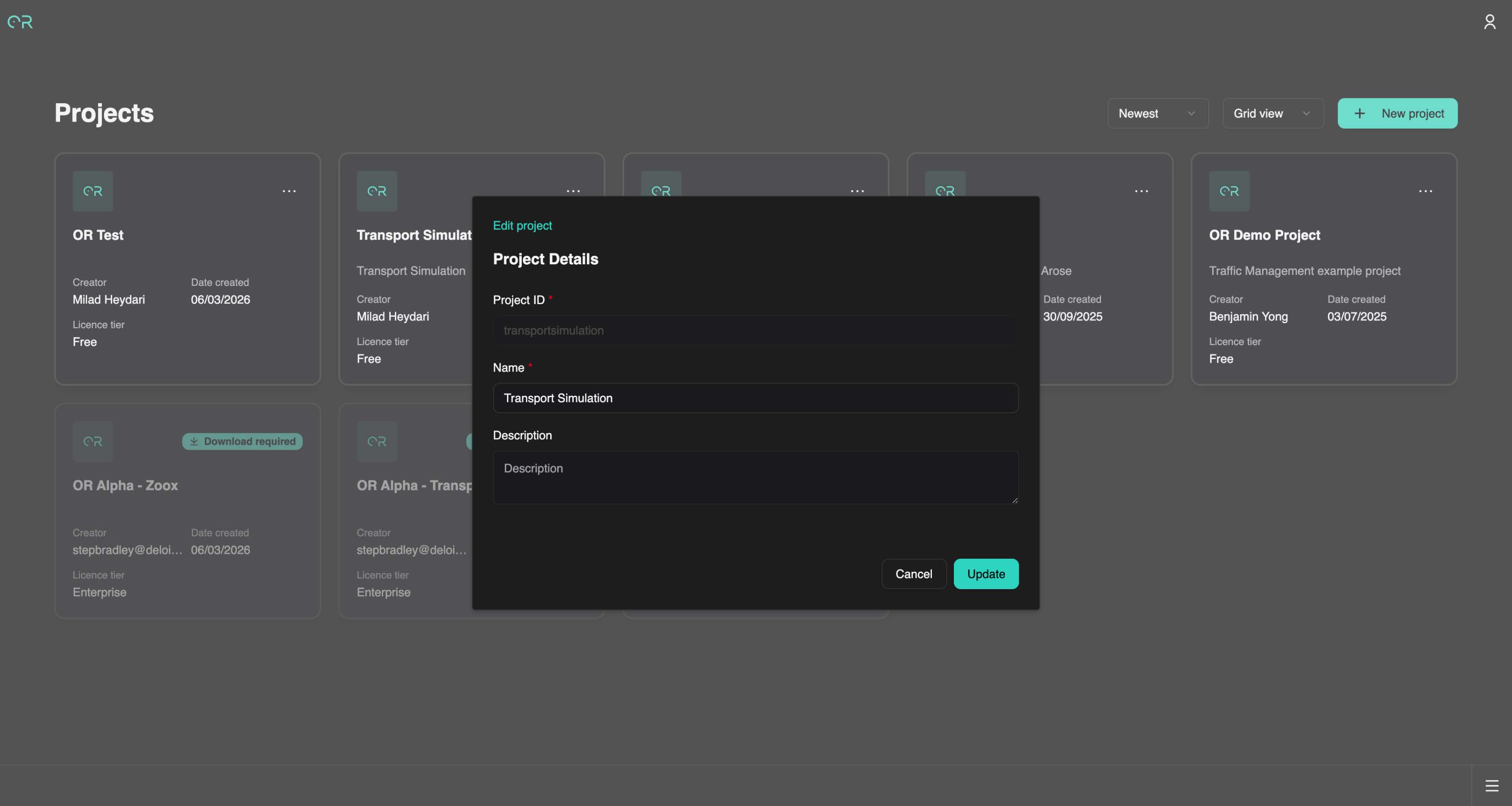
- To find your project ID, select Edit in the corner of your project on the home page. You should see your project ID displayed under Project details.
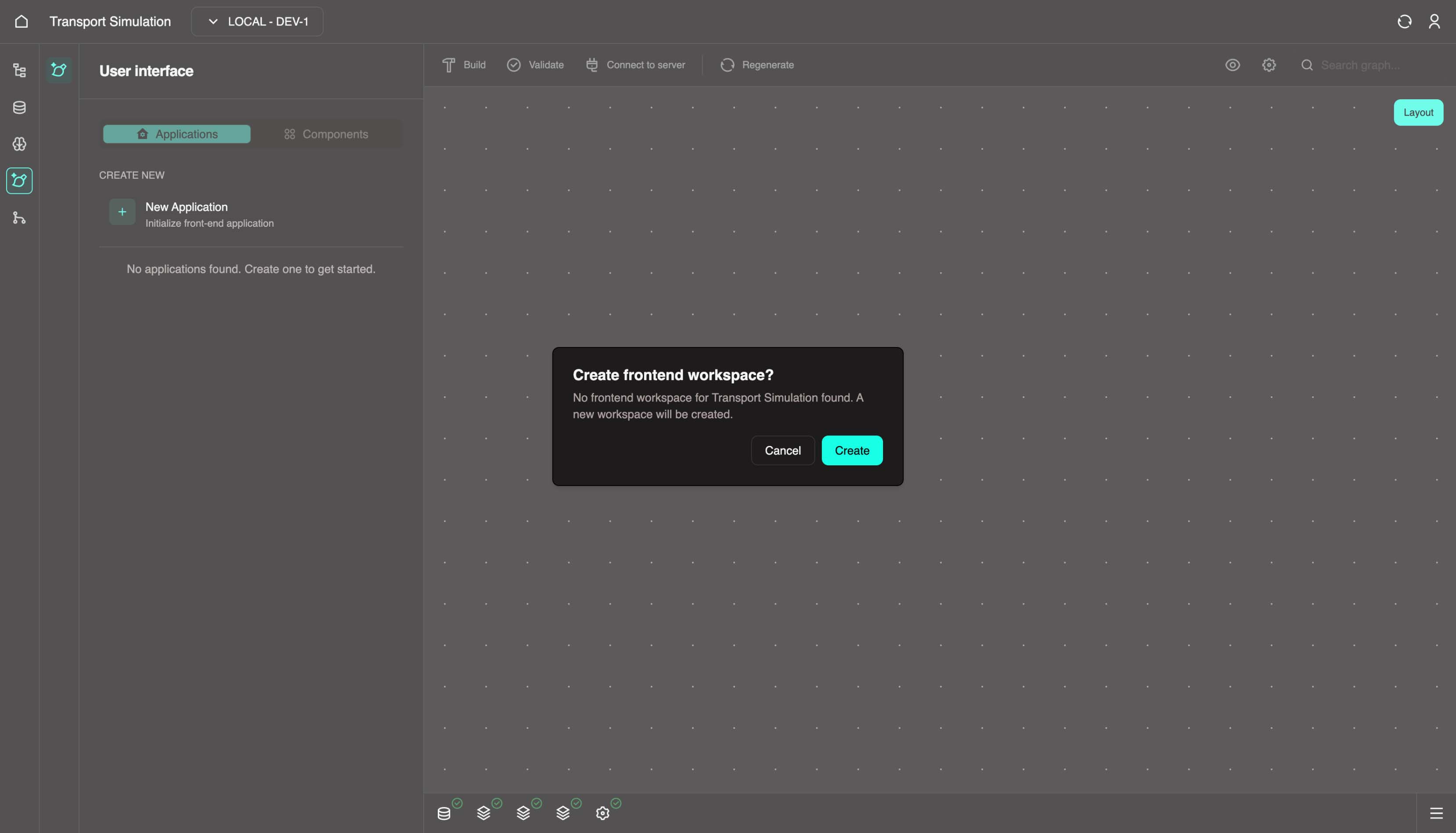
- Once your FDK workspace has been deleted, go into Nexus to check that the FDK block is no longer there. Alternatively, click back into the FDK and you should see the "Create frontend workspace" modal again.
5. Repeated 504 Errors / 504 Gateway Time-out
If you encounter repeated 504 errors, you may require elevated assistance from the OR Product team.
Try These Steps First
- Close your browser tabs for the OR SDK
- Wait 5-10 minutes before reloading the web SDK again
- If still encountering 504 errors, try accessing OR in an Incognito window
- Or clear the browser cache for the website
If not resolved, please reach out to an OR support contact and we'll investigate your remote environment.
6. File or Directory Permissions Creation Errors
Contact Support
If you encounter any permissions denied errors when performing any SDK operations, please reach out to an OR support contact and we'll investigate your remote environment.
7. White Screens When Entering a Different Development Kit
If you encounter a white screen when entering a different DK (i.e. Nexus, DDK, MDK, FDK), you may have issues with your browser cache.
Please clear the cache for this site. If using Chrome, you can do this by:
Open the development tools (Chrome DevTools documentation)
Go to the Network tab and check Disable cache
Reload the page